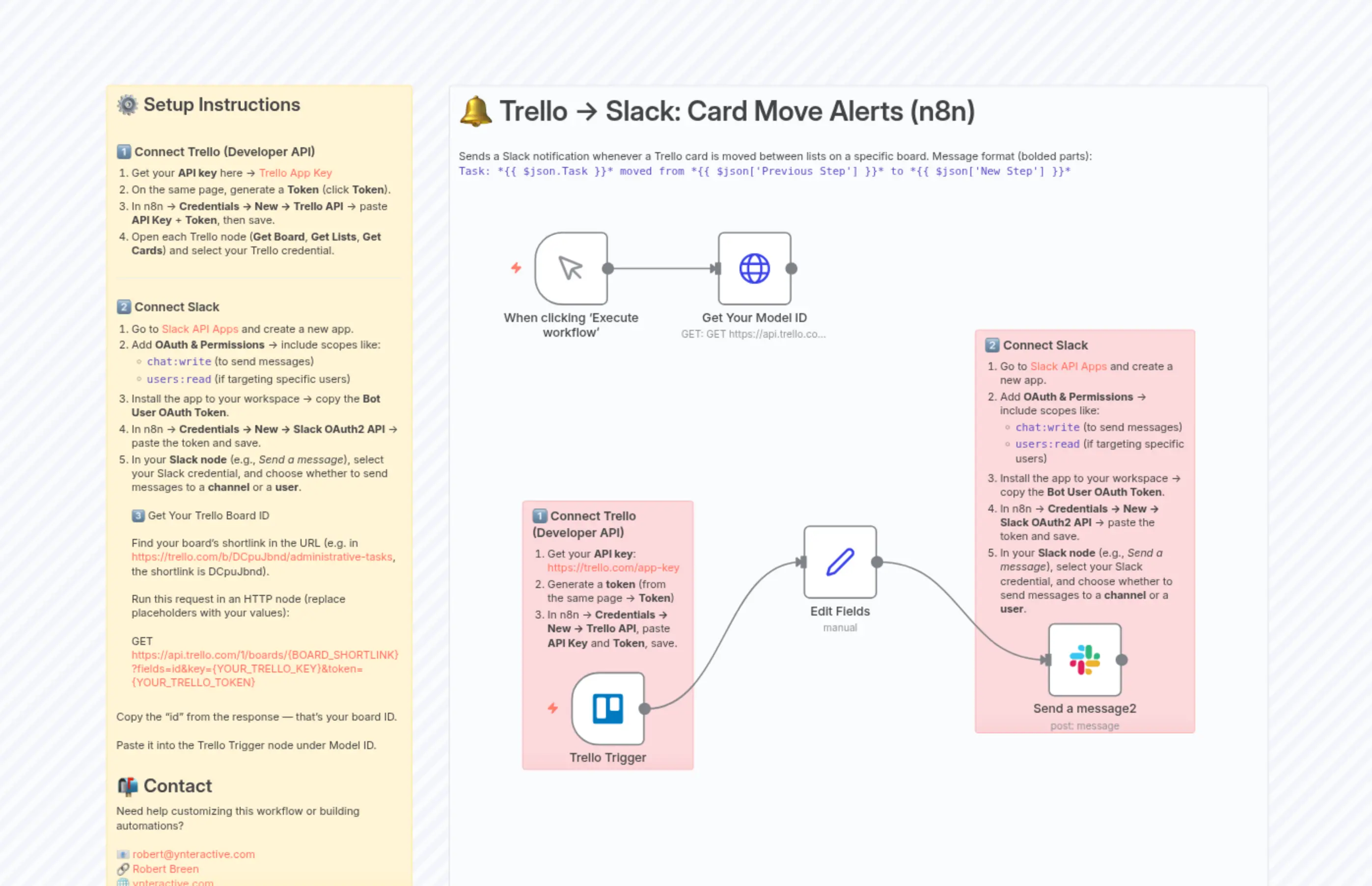
Trello to Slack Notification Trigger: Task-Card Move Alerts
説明
Categories
⚙️ Automation
Nodes Used
n8n-nodes-base.setn8n-nodes-base.slackn8n-nodes-base.stickyNoten8n-nodes-base.stickyNoten8n-nodes-base.stickyNoten8n-nodes-base.stickyNoten8n-nodes-base.httpRequestn8n-nodes-base.manualTriggern8n-nodes-base.trelloTrigger
Price無料
Views4
最終更新6/10/2026
workflow.json
{
  "meta": {
    "instanceId": "ad0113c344ee237399e44e9f11798b05baeb83a6196d514a9ae9d2ad71c3b5c9",
    "templateCredsSetupCompleted": true
  },
  "nodes": [
    {
      "id": "edea30b9-4fe9-4c32-a10b-4775910ef67e",
      "name": "When clicking ‘Execute workflow’",
      "type": "n8n-nodes-base.manualTrigger",
      "position": [
        -240,
        4720
      ],
      "parameters": {},
      "typeVersion": 1
    },
    {
      "id": "96136579-eee3-43a2-bd19-dbafe64729a0",
      "name": "Trello Trigger",
      "type": "n8n-nodes-base.trelloTrigger",
      "position": [
        -192,
        5296
      ],
      "webhookId": "7169d185-3c6c-4436-822a-8ee37a4acef7",
      "parameters": {
        "id": "67c1c7df8dceef67254e6968"
      },
      "credentials": {
        "trelloApi": {
          "id": "0inUg5020tWOj6Qr",
          "name": "Trello account 4"
        }
      },
      "typeVersion": 1
    },
    {
      "id": "48d82a0f-0492-43c8-b7fc-d99b9aeaf37e",
      "name": "Edit Fields",
      "type": "n8n-nodes-base.set",
      "position": [
        112,
        5104
      ],
      "parameters": {
        "options": {},
        "assignments": {
          "assignments": [
            {
              "id": "7b76160f-8706-437f-89cd-9a96092ec04b",
              "name": "Task",
              "type": "string",
              "value": "={{ $json.action.data.card.name }}"
            },
            {
              "id": "3d78f05f-64d7-42ca-8d75-8971644860e8",
              "name": "Previous Step",
              "type": "string",
              "value": "={{ $json.action.data.listBefore.name }}"
            },
            {
              "id": "a55a52fd-93c7-43ff-bcc8-30299f164c73",
              "name": "New Step",
              "type": "string",
              "value": "={{ $json.action.data.listAfter.name }}"
            }
          ]
        }
      },
      "typeVersion": 3.4
    },
    {
      "id": "699bfcb2-b95c-476c-8b6d-d3fcce961ff8",
      "name": "Send a message2",
      "type": "n8n-nodes-base.slack",
      "position": [
        432,
        5232
      ],
      "webhookId": "14f651eb-ad60-48fe-aa20-1e96a24be707",
      "parameters": {
        "text": "=Task: *{{ $json.Task }}* moved from *{{ $json['Previous Step'] }}* to *{{ $json['New Step'] }}*",
        "user": {
          "__rl": true,
          "mode": "list",
          "value": "U09ADJPB7QA",
          "cachedResultName": "rbreen672"
        },
        "select": "user",
        "otherOptions": {},
        "authentication": "oAuth2"
      },
      "credentials": {
        "slackOAuth2Api": {
          "id": "xMo9MC2XXECx5Mqp",
          "name": "Slack account 8"
        }
      },
      "typeVersion": 2.3
    },
    {
      "id": "ad64796f-5028-4040-a6b0-7d9c41d03354",
      "name": "Sticky Note3",
      "type": "n8n-nodes-base.stickyNote",
      "position": [
        -800,
        4528
      ],
      "parameters": {
        "width": 400,
        "height": 1056,
        "content": "## ⚙️ Setup Instructions\n\n### 1️⃣ Connect Trello (Developer API)\n1. Get your **API key** here → [Trello App Key](https://trello.com/app-key)  \n2. On the same page, generate a **Token** (click **Token**).  \n3. In n8n → **Credentials → New → Trello API** → paste **API Key** + **Token**, then save.  \n4. Open each Trello node (**Get Board**, **Get Lists**, **Get Cards**) and select your Trello credential.  \n\n---\n\n### 2️⃣ Connect Slack\n1. Go to [Slack API Apps](https://api.slack.com/apps) and create a new app.  \n2. Add **OAuth & Permissions** → include scopes like:  \n   - `chat:write` (to send messages)  \n   - `users:read` (if targeting specific users)  \n3. Install the app to your workspace → copy the **Bot User OAuth Token**.  \n4. In n8n → **Credentials → New → Slack OAuth2 API** → paste the token and save.  \n5. In your **Slack node** (e.g., *Send a message*), select your Slack credential, and choose whether to send messages to a **channel** or a **user**.  \n\n3️⃣ Get Your Trello Board ID\n\nFind your board’s shortlink in the URL (e.g. in https://trello.com/b/DCpuJbnd/administrative-tasks, the shortlink is DCpuJbnd).\n\nRun this request in an HTTP node (replace placeholders with your values):\n\nGET https://api.trello.com/1/boards/{BOARD_SHORTLINK}?fields=id&key={YOUR_TRELLO_KEY}&token={YOUR_TRELLO_TOKEN}\n\n\nCopy the \"id\" from the response — that’s your board ID.\n\nPaste it into the Trello Trigger node under Model ID.\n\n\n## 📬 Contact\nNeed help customizing this workflow or building automations?  \n\n📧 [[email protected]](mailto:[email protected])  \n🔗 [Robert Breen](https://www.linkedin.com/in/robert-breen-29429625/)  \n🌐 [ynteractive.com](https://ynteractive.com)  \n"
      },
      "typeVersion": 1
    },
    {
      "id": "2f22d4d3-06bb-4fe0-870b-96ee14684abd",
      "name": "Sticky Note50",
      "type": "n8n-nodes-base.stickyNote",
      "position": [
        -352,
        4528
      ],
      "parameters": {
        "color": 7,
        "width": 1072,
        "height": 1072,
        "content": "# 🔔 Trello → Slack: Card Move Alerts (n8n)\n\nSends a Slack notification whenever a Trello card is moved between lists on a specific board. Message format (bolded parts):  \n`Task: *{{ $json.Task }}* moved from *{{ $json['Previous Step'] }}* to *{{ $json['New Step'] }}*`\n"
      },
      "typeVersion": 1
    },
    {
      "id": "abcff884-cea7-4ddf-a807-ed1edc8dd076",
      "name": "Sticky Note51",
      "type": "n8n-nodes-base.stickyNote",
      "position": [
        336,
        4848
      ],
      "parameters": {
        "color": 3,
        "width": 288,
        "height": 528,
        "content": "### 2️⃣ Connect Slack\n1. Go to [Slack API Apps](https://api.slack.com/apps) and create a new app.  \n2. Add **OAuth & Permissions** → include scopes like:  \n   - `chat:write` (to send messages)  \n   - `users:read` (if targeting specific users)  \n3. Install the app to your workspace → copy the **Bot User OAuth Token**.  \n4. In n8n → **Credentials → New → Slack OAuth2 API** → paste the token and save.  \n5. In your **Slack node** (e.g., *Send a message*), select your Slack credential, and choose whether to send messages to a **channel** or a **user**.  "
      },
      "typeVersion": 1
    },
    {
      "id": "96d6ad5a-ba0c-4a63-8bd9-95d2391a7103",
      "name": "Get Your Model ID",
      "type": "n8n-nodes-base.httpRequest",
      "position": [
        0,
        4720
      ],
      "parameters": {
        "url": "GET https://api.trello.com/1/boards/{BOARD_SHORTLINK}?fields=id&key={YOUR_TRELLO_KEY}&token={YOUR_TRELLO_TOKEN}",
        "options": {}
      },
      "typeVersion": 4.2
    },
    {
      "id": "40be96db-b496-4009-a211-ccfd0e0b9874",
      "name": "Sticky Note52",
      "type": "n8n-nodes-base.stickyNote",
      "position": [
        -256,
        5072
      ],
      "parameters": {
        "color": 3,
        "width": 224,
        "height": 352,
        "content": "### 1️⃣ Connect Trello (Developer API)\n1. Get your **API key**: https://trello.com/app-key  \n2. Generate a **token** (from the same page → **Token**)\n3. In n8n → **Credentials → New → Trello API**, paste **API Key** and **Token**, save.  "
      },
      "typeVersion": 1
    }
  ],
  "pinData": {},
  "connections": {
    "Edit Fields": {
      "main": [
        [
          {
            "node": "Send a message2",
            "type": "main",
            "index": 0
          }
        ]
      ]
    },
    "Trello Trigger": {
      "main": [
        [
          {
            "node": "Edit Fields",
            "type": "main",
            "index": 0
          }
        ]
      ]
    },
    "When clicking ‘Execute workflow’": {
      "main": [
        [
          {
            "node": "Get Your Model ID",
            "type": "main",
            "index": 0
          }
        ]
      ]
    }
  }
}