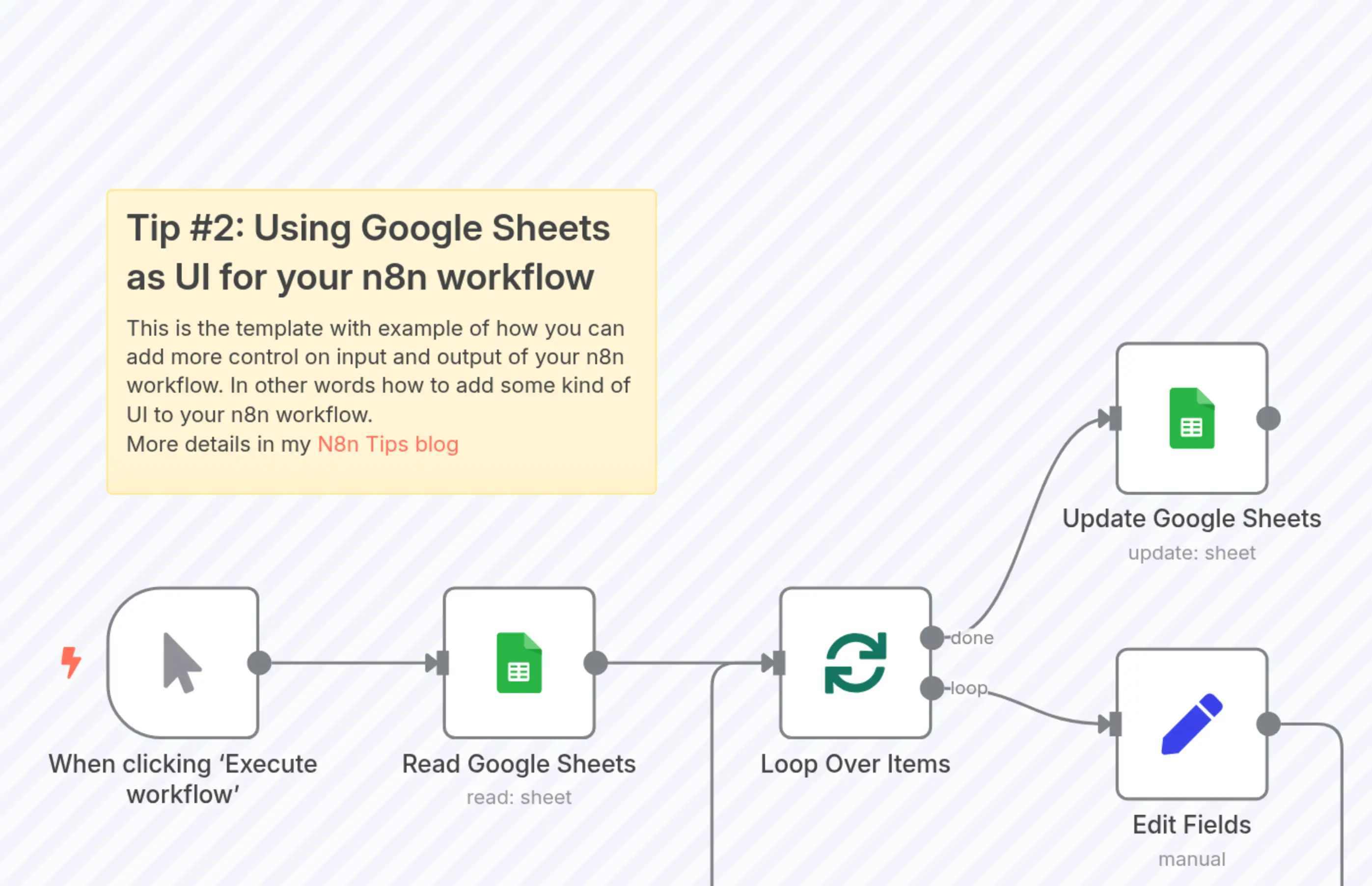
Tip #2: Using Google Sheets as UI for your n8n workflow
説明
Categories
🤖 AI & Machine Learning
Nodes Used
n8n-nodes-base.setn8n-nodes-base.stickyNoten8n-nodes-base.googleSheetsn8n-nodes-base.googleSheetsn8n-nodes-base.manualTriggern8n-nodes-base.splitInBatches
Price無料
Views0
最終更新11/28/2025
workflow.json
{
  "id": "6UxyvEC8t6hfrQvm",
  "meta": {
    "instanceId": "8981479cb588889c05b145eaed421551d37a4fff11ab279d3f4744a6577c6002",
    "templateCredsSetupCompleted": true
  },
  "name": "Tip #2: Using Google Sheets as UI for your n8n workflow",
  "tags": [],
  "nodes": [
    {
      "id": "891425c8-7f09-4a7e-8b18-4ca06a0111b6",
      "name": "When clicking ‘Execute workflow’",
      "type": "n8n-nodes-base.manualTrigger",
      "position": [
        0,
        50
      ],
      "parameters": {},
      "typeVersion": 1
    },
    {
      "id": "6a12b4f8-95f3-4a19-9b4c-091e1a1450a1",
      "name": "Sticky Note",
      "type": "n8n-nodes-base.stickyNote",
      "position": [
        0,
        -200
      ],
      "parameters": {
        "width": 360,
        "height": 200,
        "content": "## Tip #2: Using Google Sheets as UI for your n8n workflow\nThis is the template with example of how you can add more control on input and output of your n8n workflow. In other words how to add some kind of UI to your n8n workflow.\nMore details in my [N8n Tips blog](https://n8n-tips.blogspot.com/2025/06/tip-2-using-google-sheets-as-ui-for.html)"
      },
      "typeVersion": 1
    },
    {
      "id": "3567ea8e-c780-4bd2-bc34-5a88b681d9ee",
      "name": "Loop Over Items",
      "type": "n8n-nodes-base.splitInBatches",
      "position": [
        440,
        50
      ],
      "parameters": {
        "options": {}
      },
      "typeVersion": 3
    },
    {
      "id": "79583f64-4c09-4210-a440-57dbba28dc3c",
      "name": "Edit Fields",
      "type": "n8n-nodes-base.set",
      "position": [
        660,
        100
      ],
      "parameters": {
        "options": {},
        "assignments": {
          "assignments": [
            {
              "id": "4a875792-664d-4c97-af72-1252c86cc64a",
              "name": "row_number",
              "type": "number",
              "value": "={{ $json.row_number }}"
            },
            {
              "id": "cd47a508-aad7-4c7c-94cc-15752e8ede05",
              "name": "Number",
              "type": "number",
              "value": "={{ $json.Color.length }}"
            },
            {
              "id": "b67e8c39-f3f9-4614-9b5d-96876cb6a669",
              "name": "Status",
              "type": "string",
              "value": "DONE"
            }
          ]
        }
      },
      "typeVersion": 3.4
    },
    {
      "id": "698a0745-a4cd-4f2f-84e4-e8f5402c5215",
      "name": "Read Google Sheets",
      "type": "n8n-nodes-base.googleSheets",
      "position": [
        220,
        50
      ],
      "parameters": {
        "options": {},
        "filtersUI": {
          "values": [
            {
              "lookupValue": "READY",
              "lookupColumn": "Status"
            }
          ]
        },
        "sheetName": {
          "__rl": true,
          "mode": "list",
          "value": "gid=0",
          "cachedResultUrl": "https://docs.google.com/spreadsheets/d/13xu9zKI8yDqs7971qIq9zDCBCnhYzdVq8pdtnQ9vMkI/edit#gid=0",
          "cachedResultName": "Sheet1"
        },
        "documentId": {
          "__rl": true,
          "mode": "list",
          "value": "13xu9zKI8yDqs7971qIq9zDCBCnhYzdVq8pdtnQ9vMkI",
          "cachedResultUrl": "https://docs.google.com/spreadsheets/d/13xu9zKI8yDqs7971qIq9zDCBCnhYzdVq8pdtnQ9vMkI/edit?usp=drivesdk",
          "cachedResultName": "Tip #2: Using Google Sheets as UI for your n8n workflow"
        },
        "authentication": "serviceAccount"
      },
      "credentials": {
        "googleApi": {
          "id": "FboA3kaXSneJmEGX",
          "name": "Google Service Account account"
        }
      },
      "typeVersion": 4.6
    },
    {
      "id": "79f663cc-805a-453a-9e9f-8e8114c47083",
      "name": "Update Google Sheets",
      "type": "n8n-nodes-base.googleSheets",
      "position": [
        660,
        -100
      ],
      "parameters": {
        "columns": {
          "value": {},
          "schema": [
            {
              "id": "Color",
              "type": "string",
              "display": true,
              "required": false,
              "displayName": "Color",
              "defaultMatch": false,
              "canBeUsedToMatch": true
            },
            {
              "id": "Status",
              "type": "string",
              "display": true,
              "required": false,
              "displayName": "Status",
              "defaultMatch": false,
              "canBeUsedToMatch": true
            },
            {
              "id": "Number",
              "type": "string",
              "display": true,
              "required": false,
              "displayName": "Number",
              "defaultMatch": false,
              "canBeUsedToMatch": true
            },
            {
              "id": "row_number",
              "type": "string",
              "display": true,
              "removed": false,
              "readOnly": true,
              "required": false,
              "displayName": "row_number",
              "defaultMatch": false,
              "canBeUsedToMatch": true
            }
          ],
          "mappingMode": "autoMapInputData",
          "matchingColumns": [
            "row_number"
          ],
          "attemptToConvertTypes": false,
          "convertFieldsToString": false
        },
        "options": {},
        "operation": "update",
        "sheetName": {
          "__rl": true,
          "mode": "list",
          "value": "gid=0",
          "cachedResultUrl": "https://docs.google.com/spreadsheets/d/13xu9zKI8yDqs7971qIq9zDCBCnhYzdVq8pdtnQ9vMkI/edit#gid=0",
          "cachedResultName": "Sheet1"
        },
        "documentId": {
          "__rl": true,
          "mode": "list",
          "value": "13xu9zKI8yDqs7971qIq9zDCBCnhYzdVq8pdtnQ9vMkI",
          "cachedResultUrl": "https://docs.google.com/spreadsheets/d/13xu9zKI8yDqs7971qIq9zDCBCnhYzdVq8pdtnQ9vMkI/edit?usp=drivesdk",
          "cachedResultName": "Tip #2: Using Google Sheets as UI for your n8n workflow"
        },
        "authentication": "serviceAccount"
      },
      "credentials": {
        "googleApi": {
          "id": "FboA3kaXSneJmEGX",
          "name": "Google Service Account account"
        }
      },
      "typeVersion": 4.6
    }
  ],
  "active": false,
  "pinData": {},
  "settings": {
    "executionOrder": "v1"
  },
  "versionId": "b35a60f1-c0af-49ff-88d2-ca0f75334d2a",
  "connections": {
    "Edit Fields": {
      "main": [
        [
          {
            "node": "Loop Over Items",
            "type": "main",
            "index": 0
          }
        ]
      ]
    },
    "Loop Over Items": {
      "main": [
        [
          {
            "node": "Update Google Sheets",
            "type": "main",
            "index": 0
          }
        ],
        [
          {
            "node": "Edit Fields",
            "type": "main",
            "index": 0
          }
        ]
      ]
    },
    "Read Google Sheets": {
      "main": [
        [
          {
            "node": "Loop Over Items",
            "type": "main",
            "index": 0
          }
        ]
      ]
    },
    "When clicking ‘Execute workflow’": {
      "main": [
        [
          {
            "node": "Read Google Sheets",
            "type": "main",
            "index": 0
          }
        ]
      ]
    }
  }
}