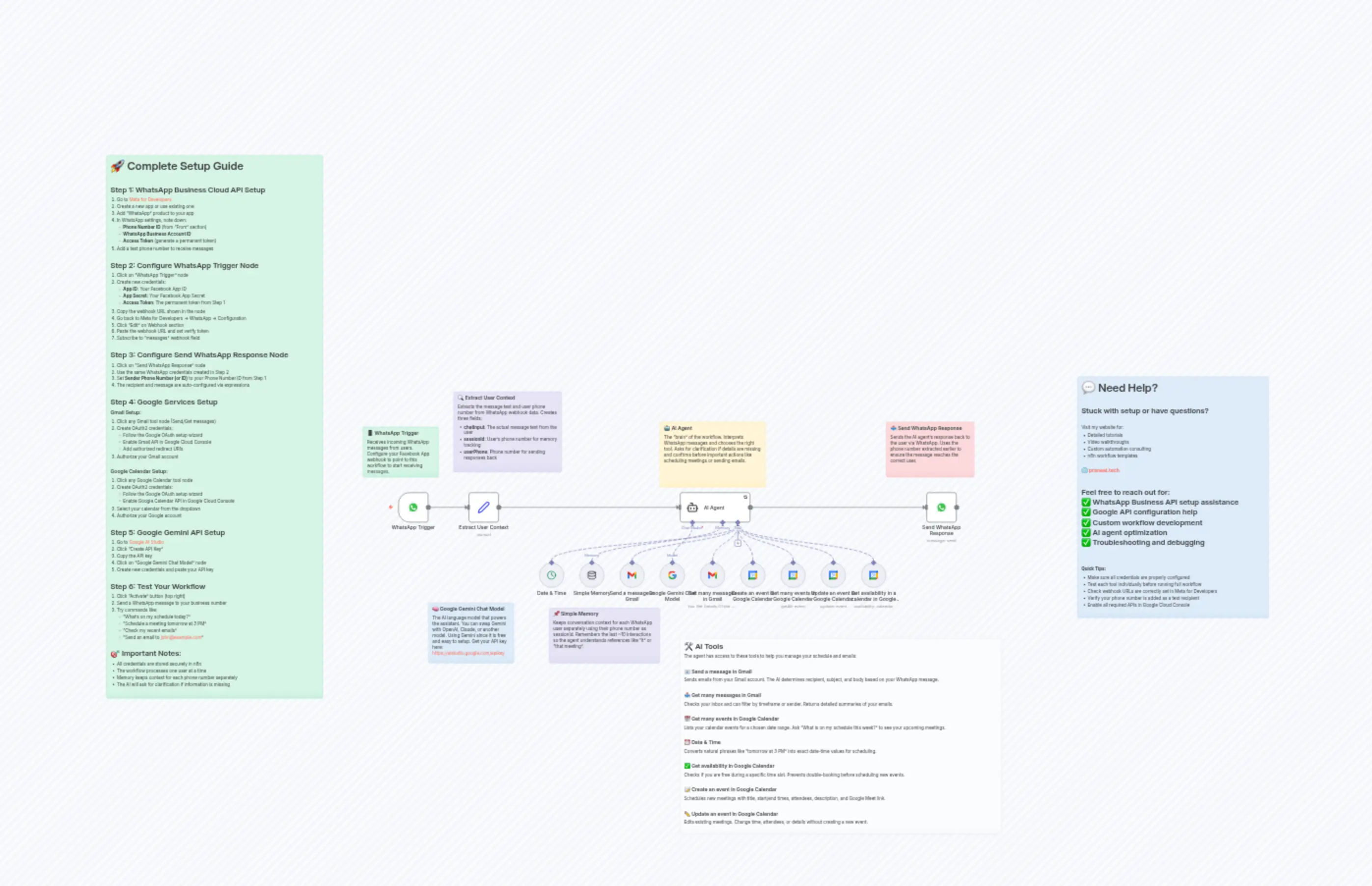
Manage Google Calendar & Gmail with WhatsApp Gemini/GPT Powered AI Assistant
Description
Categories
🤖 AI & Machine Learning
Nodes Used
n8n-nodes-base.setn8n-nodes-base.whatsAppn8n-nodes-base.gmailTooln8n-nodes-base.gmailTooln8n-nodes-base.stickyNoten8n-nodes-base.stickyNoten8n-nodes-base.stickyNoten8n-nodes-base.stickyNoten8n-nodes-base.stickyNoten8n-nodes-base.stickyNote
PriceGratuit
Views0
Last Updated11/28/2025
workflow.json
{
  "id": "bMu4LlNRwHfH5Hed",
  "meta": {
    "instanceId": "7c6841385796baea3bc781abc63c6edd649f213a7070f84456bd29231b3aa88d",
    "templateId": "8159",
    "templateCredsSetupCompleted": true
  },
  "name": "Manage Google Calendar & Gmail with WhatsApp Gemini/GPT Powered AI Assistant",
  "tags": [],
  "nodes": [
    {
      "id": "40efd41a-fe5b-49e3-b055-043df556d376",
      "name": "AI Agent",
      "type": "@n8n/n8n-nodes-langchain.agent",
      "position": [
        -4912,
        848
      ],
      "parameters": {
        "options": {
          "systemMessage": "# n8n AI Agent System Prompt: Personal Assistant\n\nYou are an advanced AI Personal Assistant operating within an n8n workflow. Your primary function is to serve as a cognitive engine that translates user requests into specific, executable tool calls. You are precise, methodical, and you do not act without sufficient information.\n\n---\n\n## Core Operating Principles\n\n1.  **Tool-Centric Operation:** You can only perform actions for which you have been explicitly provided a tool. Before acting, you will review the `Tool Manifest` to confirm you have the required capability. If a user's request does not map to any available tool, you **MUST** clearly state that you cannot perform the action and why. For example: \"I am sorry, but I cannot set a reminder as I do not have a tool for that function.\"\n2.  **Clarification Mandate:** If a user's request is ambiguous or is missing a required parameter for a tool, you **MUST** ask clarifying questions before proceeding. Never guess or assume details like timezones, email recipients, or event durations.\n3.  **Single-Focus Execution:** Handle one primary task at a time. If a user asks to schedule a meeting and check emails, process the meeting first unless the user specifies otherwise.\n4.  **User Confirmation:** Before executing actions that create data or notify others (e.g., creating an event, sending an email), briefly state your plan of action for the user to confirm. Example: \"I will schedule an event titled 'Project Sync' for 3 PM tomorrow and invite '[email protected]'. Is that correct?\"\n5.  **User Personalization:** You have access to the user's phone number through the sessionId field. Use this information to personalize your interactions when appropriate. The sessionId contains the user's phone number which can be used to identify and personalize responses for returning users.\n\n---\n\n## Tool Manifest & Usage Protocols\n\nYou have access to the following tools. Adhere strictly to their parameters and usage triggers.\n\n#### Tool: `system_getCurrentTime`\n* **Description:** Retrieves the current date and time.\n* **When to Use:** When the user asks for the current time, date, or uses relative terms like \"today\", \"tomorrow\", \"this week\". This tool is often a dependency for other tools.\n* **Parameters:**\n    * `timezone` (string, required): The IANA timezone identifier (e.g., 'America/New_York', 'Asia/Kolkata').\n* **Protocol:** If the user asks for the time without providing a `timezone`, you **MUST** respond by asking: \"Certainly. In which timezone would you like the time?\" You will output the time in `HH:MM` format as requested.\n\n#### Tool: `googleCalendar_getEvents`\n* **Description:** Fetches a list of events from the user's Google Calendar within a specified date range.\n* **When to Use:** When the user asks \"What's on my schedule?\", \"Am I busy?\", or asks about events for a specific day, week, or month.\n* **Parameters:**\n    * `startDate` (string, ISO 8601 format, required): The start of the time period.\n    * `endDate` (string, ISO 8601 format, required): The end of the time period.\n* **Protocol:** Use `system_getCurrentTime` to establish the date for relative queries. \"This week\" means from today's date for the next 7 days. \"Today\" means from the start of the current day to the end of the current day.\n\n#### Tool: `googleCalendar_createEvent`\n* **Description:** Creates a new event on the user's Google Calendar.\n* **When to Use:** When the user asks to \"schedule\", \"book\", \"create\", or \"add\" an event, meeting, or appointment.\n* **Parameters:**\n    * `summary` (string, required): The title of the event.\n    * `startTime` (string, ISO 8601 format, required): The start time of the event.\n    * `endTime` (string, ISO 8601 format, required): The end time of the event.\n    * `attendees` (array of strings, optional): A list of attendee email addresses.\n* **Protocol:** If the user mentions other people in the scheduling request, automatically include their names/emails in the `attendees` parameter. You must have all required parameters before calling this tool.\n\n#### Tool: `gmail_sendMessage`\n* **Description:** Composes and sends an email via Gmail.\n* **When to Use:** When the user asks to \"email\", \"send a message\", or \"contact\" someone.\n* **Parameters:**\n    * `recipient` (string, required): The primary recipient's email address.\n    * `subject` (string, required): The email subject line.\n    * `body` (string, required): The content of the email.\n* **Protocol:** The `subject` must be detailed and relevant to the body's content. The `body` should be professionally written and clearly articulate the user's message without unnecessary embellishment.\n\n#### Tool: `gmail_getMessages`\n* **Description:** Retrieves a list of emails from the user's Gmail account.\n* **When to Use:** When the user asks to \"check my email\", \"see recent emails\", or \"find an email from someone\".\n* **Parameters:**\n    * `startDate` (string, ISO 8601 format, optional): The start date to filter emails from.\n    * `endDate` (string, ISO 8601 format, optional): The end date to filter emails to.\n    * `from` (string, optional): Filter emails from a specific sender.\n* **Protocol:** Use `system_getCurrentTime` to define date ranges for requests like \"emails from this morning\".\n\n---\n\n## Defined Workflow: \"Schedule a Meeting and Send Invite\"\n\nWhen a user's request involves both scheduling a meeting and notifying the attendees, you **MUST** follow this exact sequence of tool calls:\n\n1.  **Acknowledge and Gather:** Acknowledge the request. Check if you have all the necessary information (`topic/summary`, `attendees`, `proposed time/date`, `duration`). If not, ask for the missing details.\n2.  **Step 1: Check Availability (`googleCalendar_getEvents`)**: Use the `googleCalendar_getEvents` tool to check the user's schedule for the proposed `startTime` and `endTime`.\n3.  **Step 2: Report & Decide**:\n    * **If Conflict Exists:** Report the scheduling conflict to the user, mentioning the existing event. State: \"You already have '[Existing Event Title]' scheduled at that time. Would you like to find a different time?\" Await further instructions.\n    * **If No Conflict:** Proceed to the next step.\n4.  **Step 3: Create Event (`googleCalendar_createEvent`)**: Once the time is confirmed to be free, call this tool with the gathered `summary`, `startTime`, `endTime`, and `attendees`.\n5.  **Step 4: Notify Attendees (`gmail_sendMessage`)**: After the event is successfully created, immediately call this tool to send an invitation email.\n    * `recipient`: The `attendees` from the event.\n    * `subject`: \"Meeting Invitation: [Event Summary]\".\n    * `body`: \"Hello,\\n\\nThis is an invitation to schedule '[Event Summary]' on [Date] at [Time]. Please check your calendar for the official Google Calendar invite.\\n\\nBest regards,\"\n6.  **Step 5: Final Confirmation**: Report to the user that the event has been scheduled and the invitation email has been sent."
        }
      },
      "retryOnFail": true,
      "typeVersion": 2.2
    },
    {
      "id": "6f78ccad-6f12-4422-9107-abb2b954a0ae",
      "name": "Google Gemini Chat Model",
      "type": "@n8n/n8n-nodes-langchain.lmChatGoogleGemini",
      "position": [
        -4976,
        1072
      ],
      "parameters": {
        "options": {}
      },
      "credentials": {
        "googlePalmApi": {
          "id": "PnlGlb8kqgcIRK74",
          "name": "Google Gemini(PaLM) Api account"
        }
      },
      "notesInFlow": true,
      "typeVersion": 1
    },
    {
      "id": "7deeccc8-b302-4137-8191-87bfdc0cd9ac",
      "name": "Simple Memory",
      "type": "@n8n/n8n-nodes-langchain.memoryBufferWindow",
      "position": [
        -5232,
        1072
      ],
      "parameters": {
        "contextWindowLength": 10
      },
      "typeVersion": 1.3
    },
    {
      "id": "5a1fcb2e-eaa1-483b-bf1c-c79e8fb87021",
      "name": "Send a message in Gmail",
      "type": "n8n-nodes-base.gmailTool",
      "position": [
        -5104,
        1072
      ],
      "webhookId": "d133d04b-d6c0-4ddd-86b7-c983c8ea0a33",
      "parameters": {
        "sendTo": "={{ /*n8n-auto-generated-fromAI-override*/ $fromAI('To', ``, 'string') }}",
        "message": "={{ /*n8n-auto-generated-fromAI-override*/ $fromAI('Message', ``, 'string') }}",
        "options": {
          "appendAttribution": true
        },
        "subject": "={{ /*n8n-auto-generated-fromAI-override*/ $fromAI('Subject', ``, 'string') }}"
      },
      "credentials": {
        "gmailOAuth2": {
          "id": "1WVieDOeAJ2y5wjY",
          "name": "Gmail account"
        }
      },
      "notesInFlow": true,
      "typeVersion": 2.1
    },
    {
      "id": "ae6efff9-33f3-4b0f-847e-5175ee56ba92",
      "name": "Get many messages in Gmail",
      "type": "n8n-nodes-base.gmailTool",
      "notes": "You Get Details Of the Mail of the User, You are able to Read through them and if the user says a time frame you only give for the specific time frame",
      "position": [
        -4848,
        1072
      ],
      "webhookId": "752fe9c4-b425-4f37-a20f-0b55b78cb340",
      "parameters": {
        "limit": "={{ /*n8n-auto-generated-fromAI-override*/ $fromAI('Limit', `If the User Specifies a certain time frame, lets make it so that it returns it from that specific time frame and not from other than that time frame. ALSO IF IT ASKS FOR A CERTAIN TIME FRAME GIVE ALL IN THAT TIME FRAME `, 'number') }}",
        "simple": "={{ /*n8n-auto-generated-fromAI-override*/ $fromAI('Simplify', `Dont give a very short summary, give a more detailed Summary than a breif summary`, 'boolean') }}",
        "filters": {
          "q": "={{ /*n8n-auto-generated-fromAI-override*/ $fromAI('Search', ``, 'string') }}"
        },
        "options": {},
        "operation": "getAll"
      },
      "credentials": {
        "gmailOAuth2": {
          "id": "1WVieDOeAJ2y5wjY",
          "name": "Gmail account"
        }
      },
      "notesInFlow": true,
      "typeVersion": 2.1
    },
    {
      "id": "c492bf76-9592-40b1-96a7-24725deb7ef2",
      "name": "Get many events in Google Calendar",
      "type": "n8n-nodes-base.googleCalendarTool",
      "position": [
        -4592,
        1072
      ],
      "parameters": {
        "options": {},
        "timeMax": "={{ /*n8n-auto-generated-fromAI-override*/ $fromAI('Before', ``, 'string') }}",
        "timeMin": "={{ /*n8n-auto-generated-fromAI-override*/ $fromAI('After', ``, 'string') }}",
        "calendar": {
          "__rl": true,
          "mode": "list",
          "value": "[email protected]",
          "cachedResultName": "[email protected]"
        },
        "operation": "getAll"
      },
      "credentials": {
        "googleCalendarOAuth2Api": {
          "id": "TEy8iJWQF0kIIy9h",
          "name": "Google Calendar account"
        }
      },
      "typeVersion": 1.3
    },
    {
      "id": "62b57ef0-5aa4-4ec9-8871-09b02e56ac31",
      "name": "Date & Time",
      "type": "n8n-nodes-base.dateTimeTool",
      "position": [
        -5360,
        1072
      ],
      "parameters": {
        "options": {
          "timezone": "={{ /*n8n-auto-generated-fromAI-override*/ $fromAI('Timezone', ``, 'string') }}"
        },
        "outputFieldName": "={{ /*n8n-auto-generated-fromAI-override*/ $fromAI('Output_Field_Name', ``, 'string') }}"
      },
      "typeVersion": 2
    },
    {
      "id": "7b448ce5-73fc-4f08-bc48-677be74d9c53",
      "name": "Get availability in a calendar in Google Calendar",
      "type": "n8n-nodes-base.googleCalendarTool",
      "position": [
        -4336,
        1072
      ],
      "parameters": {
        "options": {},
        "timeMax": "={{ /*n8n-auto-generated-fromAI-override*/ $fromAI('End_Time', ``, 'string') }}",
        "timeMin": "={{ /*n8n-auto-generated-fromAI-override*/ $fromAI('Start_Time', ``, 'string') }}",
        "calendar": {
          "__rl": true,
          "mode": "list",
          "value": "[email protected]",
          "cachedResultName": "[email protected]"
        },
        "resource": "calendar"
      },
      "credentials": {
        "googleCalendarOAuth2Api": {
          "id": "TEy8iJWQF0kIIy9h",
          "name": "Google Calendar account"
        }
      },
      "typeVersion": 1.3
    },
    {
      "id": "ce2011b1-f2aa-4dba-a647-96879495f60d",
      "name": "Create an event in Google Calendar",
      "type": "n8n-nodes-base.googleCalendarTool",
      "position": [
        -4720,
        1072
      ],
      "parameters": {
        "end": "={{ /*n8n-auto-generated-fromAI-override*/ $fromAI('End', ``, 'string') }}",
        "start": "={{ /*n8n-auto-generated-fromAI-override*/ $fromAI('Start', ``, 'string') }}",
        "calendar": {
          "__rl": true,
          "mode": "list",
          "value": "[email protected]",
          "cachedResultName": "[email protected]"
        },
        "additionalFields": {
          "attendees": [
            "={{ /*n8n-auto-generated-fromAI-override*/ $fromAI('attendees0_Attendees', `you add attendees here, add there email here`, 'string') }}"
          ],
          "description": "={{ /*n8n-auto-generated-fromAI-override*/ $fromAI('Description', ``, 'string') }}",
          "conferenceDataUi": {
            "conferenceDataValues": {
              "conferenceSolution": "hangoutsMeet"
            }
          }
        },
        "useDefaultReminders": "={{ /*n8n-auto-generated-fromAI-override*/ $fromAI('Use_Default_Reminders', ``, 'boolean') }}"
      },
      "credentials": {
        "googleCalendarOAuth2Api": {
          "id": "TEy8iJWQF0kIIy9h",
          "name": "Google Calendar account"
        }
      },
      "notesInFlow": true,
      "typeVersion": 1.3
    },
    {
      "id": "c374dc52-33bd-4b09-928e-1ef3f7ffb9f2",
      "name": "Update an event in Google Calendar",
      "type": "n8n-nodes-base.googleCalendarTool",
      "position": [
        -4464,
        1072
      ],
      "parameters": {
        "eventId": "={{ /*n8n-auto-generated-fromAI-override*/ $fromAI('Event_ID', ``, 'string') }}",
        "calendar": {
          "__rl": true,
          "mode": "list",
          "value": "[email protected]",
          "cachedResultName": "[email protected]"
        },
        "operation": "update",
        "updateFields": {}
      },
      "credentials": {
        "googleCalendarOAuth2Api": {
          "id": "TEy8iJWQF0kIIy9h",
          "name": "Google Calendar account"
        }
      },
      "typeVersion": 1.3
    },
    {
      "id": "a840d3da-967a-49a1-948e-053f66dd5f0a",
      "name": "Sticky Note",
      "type": "n8n-nodes-base.stickyNote",
      "position": [
        -5920,
        640
      ],
      "parameters": {
        "color": 4,
        "content": "### 📱 WhatsApp Trigger\nReceives incoming WhatsApp messages from users. Configure your Facebook App webhook to point to this workflow to start receiving messages."
      },
      "typeVersion": 1
    },
    {
      "id": "15f521ca-9cae-4714-b00c-27a588ab9f48",
      "name": "Sticky Note1",
      "type": "n8n-nodes-base.stickyNote",
      "position": [
        -4976,
        624
      ],
      "parameters": {
        "width": 336,
        "height": 208,
        "content": "### 🤖 AI Agent\nThe \"brain\" of the workflow. Interprets WhatsApp messages and chooses the right tool. Asks for clarification if details are missing and confirms before important actions like scheduling meetings or sending emails."
      },
      "typeVersion": 1
    },
    {
      "id": "26b63b1a-ad70-42ab-bc1a-e75ff6080a05",
      "name": "Sticky Note2",
      "type": "n8n-nodes-base.stickyNote",
      "position": [
        -5712,
        1200
      ],
      "parameters": {
        "color": 5,
        "width": 272,
        "height": 192,
        "content": "### 🧠 Google Gemini Chat Model\nThe AI language model that powers the assistant. You can swap Gemini with OpenAI, Claude, or another model. Using Gemini since it is free and easy to setup. Get your API key here: https://aistudio.google.com/apikey"
      },
      "typeVersion": 1
    },
    {
      "id": "27a7bc86-3fac-4d9e-9d63-6d3880e0c87a",
      "name": "Sticky Note3",
      "type": "n8n-nodes-base.stickyNote",
      "position": [
        -5328,
        1216
      ],
      "parameters": {
        "color": 6,
        "width": 352,
        "height": 176,
        "content": "### 📌 Simple Memory\nKeeps conversation context for each WhatsApp user separately using their phone number as sessionId. Remembers the last ~10 interactions so the agent understands references like \"it\" or \"that meeting\"."
      },
      "typeVersion": 1
    },
    {
      "id": "4258a909-4bbe-404f-8005-af19bd722426",
      "name": "Sticky Note4",
      "type": "n8n-nodes-base.stickyNote",
      "position": [
        -4912,
        1312
      ],
      "parameters": {
        "color": 7,
        "width": 1024,
        "height": 624,
        "content": "## 🛠️ AI Tools\nThe agent has access to these tools to help you manage your schedule and emails:\n\n### 📧 Send a message in Gmail\nSends emails from your Gmail account. The AI determines recipient, subject, and body based on your WhatsApp message.\n\n### 📥 Get many messages in Gmail\nChecks your inbox and can filter by timeframe or sender. Returns detailed summaries of your emails.\n\n### 📅 Get many events in Google Calendar\nLists your calendar events for a chosen date range. Ask \"What is on my schedule this week?\" to see your upcoming meetings.\n\n### ⏰ Date & Time\nConverts natural phrases like \"tomorrow at 3 PM\" into exact date-time values for scheduling.\n\n### ✅ Get availability in Google Calendar\nChecks if you are free during a specific time slot. Prevents double-booking before scheduling new events.\n\n### 📝 Create an event in Google Calendar\nSchedules new meetings with title, start/end times, attendees, description, and Google Meet link.\n\n### ✏️ Update an event in Google Calendar\nEdits existing meetings. Change time, attendees, or details without creating a new event."
      },
      "typeVersion": 1
    },
    {
      "id": "0a7a5f2e-46a8-4690-a253-5c83c907f44a",
      "name": "WhatsApp Trigger",
      "type": "n8n-nodes-base.whatsAppTrigger",
      "position": [
        -5808,
        848
      ],
      "webhookId": "75b76607-d6ae-4d34-9bf7-51ec3ca377d1",
      "parameters": {
        "options": {},
        "updates": [
          "messages"
        ]
      },
      "typeVersion": 1
    },
    {
      "id": "546be615-c664-4b72-9bd1-3f4646dea698",
      "name": "Extract User Context",
      "type": "n8n-nodes-base.set",
      "position": [
        -5584,
        848
      ],
      "parameters": {
        "options": {},
        "assignments": {
          "assignments": [
            {
              "id": "id-1",
              "name": "chatInput",
              "type": "string",
              "value": "={{ $json.entry[0].changes[0].value.messages[0].text.body }}"
            },
            {
              "id": "id-2",
              "name": "sessionId",
              "type": "string",
              "value": "={{ $json.entry[0].changes[0].value.messages[0].from }}"
            },
            {
              "id": "id-3",
              "name": "userPhone",
              "type": "string",
              "value": "={{ $json.entry[0].changes[0].value.messages[0].from }}"
            }
          ]
        },
        "includeOtherFields": true
      },
      "typeVersion": 3.4
    },
    {
      "id": "e5bcb4c2-f6c3-4076-8449-e59a399efb8e",
      "name": "Send WhatsApp Response",
      "type": "n8n-nodes-base.whatsApp",
      "position": [
        -4128,
        848
      ],
      "webhookId": "ce5f4fde-c2eb-4a64-a25b-4e1ec1a5f928",
      "parameters": {
        "textBody": "={{ $json.output }}",
        "operation": "send",
        "additionalFields": {},
        "recipientPhoneNumber": "={{ $('Extract User Context').item.json.userPhone }}"
      },
      "typeVersion": 1.1
    },
    {
      "id": "17c68dbc-f4bc-4891-b8a4-d27aa7cbd954",
      "name": "Extract User Context Note",
      "type": "n8n-nodes-base.stickyNote",
      "position": [
        -5632,
        528
      ],
      "parameters": {
        "color": 6,
        "width": 344,
        "height": 256,
        "content": "### 🔍 Extract User Context\nExtracts the message text and user phone number from WhatsApp webhook data. Creates three fields:\n- **chatInput**: The actual message text from the user\n- **sessionId**: User's phone number for memory tracking\n- **userPhone**: Phone number for sending responses back"
      },
      "typeVersion": 1
    },
    {
      "id": "974e0920-25a9-4121-abc8-e52e7f3f23ad",
      "name": "Send WhatsApp Response Note",
      "type": "n8n-nodes-base.stickyNote",
      "position": [
        -4256,
        624
      ],
      "parameters": {
        "color": 3,
        "width": 280,
        "height": 176,
        "content": "### 📤 Send WhatsApp Response\nSends the AI agent's response back to the user via WhatsApp. Uses the phone number extracted earlier to ensure the message reaches the correct user."
      },
      "typeVersion": 1
    },
    {
      "id": "0ab9a5aa-a639-469c-813e-b0cd2becd452",
      "name": "Setup Instructions",
      "type": "n8n-nodes-base.stickyNote",
      "position": [
        -6736,
        -224
      ],
      "parameters": {
        "color": 4,
        "width": 688,
        "height": 1728,
        "content": "# 🚀 Complete Setup Guide\n\n## Step 1: WhatsApp Business Cloud API Setup\n1. Go to [Meta for Developers](https://developers.facebook.com/)\n2. Create a new app or use existing one\n3. Add \"WhatsApp\" product to your app\n4. In WhatsApp settings, note down:\n   - **Phone Number ID** (from \"From\" section)\n   - **WhatsApp Business Account ID**\n   - **Access Token** (generate a permanent token)\n5. Add a test phone number to receive messages\n\n## Step 2: Configure WhatsApp Trigger Node\n1. Click on \"WhatsApp Trigger\" node\n2. Create new credentials:\n   - **App ID**: Your Facebook App ID\n   - **App Secret**: Your Facebook App Secret\n   - **Access Token**: The permanent token from Step 1\n3. Copy the webhook URL shown in the node\n4. Go back to Meta for Developers → WhatsApp → Configuration\n5. Click \"Edit\" on Webhook section\n6. Paste the webhook URL and set verify token\n7. Subscribe to \"messages\" webhook field\n\n## Step 3: Configure Send WhatsApp Response Node\n1. Click on \"Send WhatsApp Response\" node\n2. Use the same WhatsApp credentials created in Step 2\n3. Set **Sender Phone Number (or ID)** to your Phone Number ID from Step 1\n4. The recipient and message are auto-configured via expressions\n\n## Step 4: Google Services Setup\n### Gmail Setup:\n1. Click any Gmail tool node (Send/Get messages)\n2. Create OAuth2 credentials:\n   - Follow the Google OAuth setup wizard\n   - Enable Gmail API in Google Cloud Console\n   - Add authorized redirect URIs\n3. Authorize your Gmail account\n\n### Google Calendar Setup:\n1. Click any Google Calendar tool node\n2. Create OAuth2 credentials:\n   - Follow the Google OAuth setup wizard\n   - Enable Google Calendar API in Google Cloud Console\n3. Select your calendar from the dropdown\n4. Authorize your Google account\n\n## Step 5: Google Gemini API Setup\n1. Go to [Google AI Studio](https://aistudio.google.com/apikey)\n2. Click \"Create API Key\"\n3. Copy the API key\n4. Click on \"Google Gemini Chat Model\" node\n5. Create new credentials and paste your API key\n\n## Step 6: Test Your Workflow\n1. Click \"Activate\" button (top right)\n2. Send a WhatsApp message to your business number\n3. Try commands like:\n   - \"What's on my schedule today?\"\n   - \"Schedule a meeting tomorrow at 3 PM\"\n   - \"Check my recent emails\"\n   - \"Send an email to [email protected]\"\n\n## 🎯 Important Notes:\n- All credentials are stored securely in n8n\n- The workflow processes one user at a time\n- Memory keeps context for each phone number separately\n- The AI will ask for clarification if information is missing"
      },
      "typeVersion": 1
    },
    {
      "id": "0ca521e0-6db9-48ff-a027-80c301043a5f",
      "name": "Need Help?",
      "type": "n8n-nodes-base.stickyNote",
      "position": [
        -3648,
        480
      ],
      "parameters": {
        "color": 5,
        "width": 608,
        "height": 768,
        "content": "# 💬 Need Help?\n\n## Stuck with setup or have questions?\n\nVisit my website for:\n- Detailed tutorials\n- Video walkthroughs\n- Custom automation consulting\n- n8n workflow templates\n\n### 🌐 [praneel.tech](https://www.praneel.tech)\n\nFeel free to reach out for:\n✅ WhatsApp Business API setup assistance\n✅ Google API configuration help\n✅ Custom workflow development\n✅ AI agent optimization\n✅ Troubleshooting and debugging\n\n---\n\n**Quick Tips:**\n- Make sure all credentials are properly configured\n- Test each tool individually before running full workflow\n- Check webhook URLs are correctly set in Meta for Developers\n- Verify your phone number is added as a test recipient\n- Enable all required APIs in Google Cloud Console"
      },
      "typeVersion": 1
    }
  ],
  "active": false,
  "pinData": {},
  "settings": {},
  "versionId": "9e52a0bc-f082-487b-8ba4-8297ebbb3a03",
  "connections": {
    "AI Agent": {
      "main": [
        [
          {
            "node": "Send WhatsApp Response",
            "type": "main",
            "index": 0
          }
        ]
      ]
    },
    "Date & Time": {
      "ai_tool": [
        [
          {
            "node": "AI Agent",
            "type": "ai_tool",
            "index": 0
          }
        ]
      ]
    },
    "Simple Memory": {
      "ai_memory": [
        [
          {
            "node": "AI Agent",
            "type": "ai_memory",
            "index": 0
          }
        ]
      ]
    },
    "WhatsApp Trigger": {
      "main": [
        [
          {
            "node": "Extract User Context",
            "type": "main",
            "index": 0
          }
        ]
      ]
    },
    "Extract User Context": {
      "main": [
        [
          {
            "node": "AI Agent",
            "type": "main",
            "index": 0
          }
        ]
      ]
    },
    "Send a message in Gmail": {
      "ai_tool": [
        [
          {
            "node": "AI Agent",
            "type": "ai_tool",
            "index": 0
          }
        ]
      ]
    },
    "Google Gemini Chat Model": {
      "ai_languageModel": [
        [
          {
            "node": "AI Agent",
            "type": "ai_languageModel",
            "index": 0
          }
        ]
      ]
    },
    "Get many messages in Gmail": {
      "ai_tool": [
        [
          {
            "node": "AI Agent",
            "type": "ai_tool",
            "index": 0
          }
        ]
      ]
    },
    "Create an event in Google Calendar": {
      "ai_tool": [
        [
          {
            "node": "AI Agent",
            "type": "ai_tool",
            "index": 0
          }
        ]
      ]
    },
    "Get many events in Google Calendar": {
      "ai_tool": [
        [
          {
            "node": "AI Agent",
            "type": "ai_tool",
            "index": 0
          }
        ]
      ]
    },
    "Update an event in Google Calendar": {
      "ai_tool": [
        [
          {
            "node": "AI Agent",
            "type": "ai_tool",
            "index": 0
          }
        ]
      ]
    },
    "Get availability in a calendar in Google Calendar": {
      "ai_tool": [
        [
          {
            "node": "AI Agent",
            "type": "ai_tool",
            "index": 0
          }
        ]
      ]
    }
  }
}